- What is call transfer in VICIdial?
- The VICIdial Agent Call Transfer dashboard during a live call
- Blind transfer vs. warm transfer
- Conference Call Transfer
- Transferring to a queue vs. transferring to a specific agent
- Common configuration points for call transfer
- How DialerKing customizes VICIdial call transfer workflows
- Frequently asked questions
- Ready to improve your VICIdial transfer workflow?
Every Contact Center VICIdial operation reaches a point where a live call needs to move. This guide explains how the VICIdial agent call transfer system works, the different transfer methods available, and how to handle each scenario correctly.
The original agent may not have the authority to resolve an issue, the customer may need a specialist, or a team lead may need to step in. Whatever the reason, how that handoff happens determines whether the customer experience holds together or falls apart.
VICIdial gives agents and supervisors a structured set of tools to move calls between agents, queues, and external numbers – while keeping control of what happens at each step.
What is call transfer in VICIdial?
VICIdial Agent Call Transfer is the process of moving an active inbound or outbound call from one agent to another agent, a different campaign queue, an external SIP number, or a conference bridge – without ending the call from the customer’s perspective.
VICIdial processes all transfers through its internal Asterisk telephony engine, which means transfers happen at the server level rather than relying on physical phone hardware. This gives the system fine-grained control over call state at every point in the transfer process.
The transfer tools are built directly into the agent panel and are accessible during a live call without requiring the agent to navigate away from the screen.
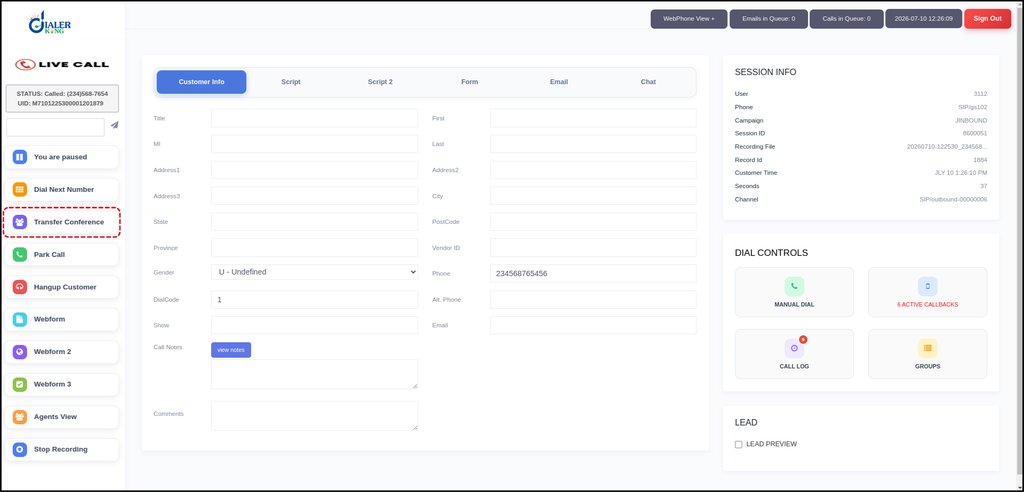
The VICIdial Agent Call Transfer dashboard during a live call
When an agent is connected to a live call, the VICIdial Agent Call Transfer dashboard changes state. The standard pre-call controls are replaced by active-call options, and the transfer button becomes available.
The dashboard at this point shows:
- The connected call timer
- The customer’s lead record and disposition options
- A set of call-control buttons including hold, mute, park, and transfer
- The current campaign and inbound group context
The transfer button is located within this active-call toolbar. Clicking it opens the transfer options screen, which is where the agent selects the destination and transfer method.
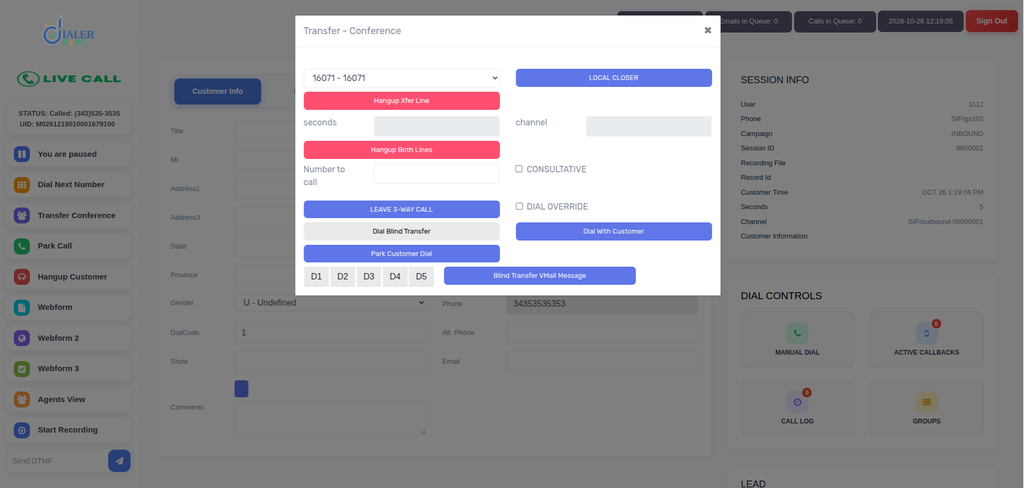
The Transfer Options Screen
The transfer options screen in VICIdial Agent Call Transfer presents several destination types and transfer methods on a single panel. An agent does not need to end the current call or navigate elsewhere – the transfer is initiated and managed from this screen while the call remains live.
From the transfer screen, an agent can:
- Search for an internal agent by name or agent ID
- Select a campaign or inbound group queue
- Enter an external phone number or SIP address
- Choose between blind transfer and warm transfer
Blind transfer vs. warm transfer
These two methods represent the core transfer options in VICIdial, and understanding the difference is essential for agents and supervisors alike.
Blind transfer
In a blind transfer, the agent sends the call directly to the destination and immediately disconnects from it. The receiving agent or queue picks up without any prior conversation with the transferring agent.
Use blind transfer when:
- The destination is well-defined and the customer’s situation is straightforward
- The agent has already resolved their portion of the interaction and a handoff note isn’t needed
- The receiving team handles a high volume of similar call types and context is not required
The risk with blind transfer is that if the destination is unavailable or the queue is full, the customer may experience a gap. VICIdial handles this through fallback routing configured at the campaign or inbound group level.
Warm transfer
In a warm transfer, the transferring agent places the customer on hold, calls the receiving agent first, and introduces the customer before completing the handoff. The receiving agent is briefed before the customer is connected, and the transferring agent only exits after confirmation.
Use warm transfer when:
- The customer’s situation is complex or sensitive
- The receiving agent needs context that isn’t captured in the lead record
- Escalations to team leads or supervisors require a verbal handoff
Warm transfers take longer, but they eliminate the experience gap. The customer never has to repeat themselves, and the receiving agent starts the interaction with full context.
Comparison: Blind Transfer vs. Warm Transfer
| Factor | Blind Transfer | Warm Transfer |
|---|---|---|
| Agent stay on call | No – exits immediately | Yes – until handoff is confirmed |
| Customer hold time | Minimal | Longer (briefing required) |
| Receiving agent briefed | No | Yes, before customer joins |
| Best for | Routine transfers, clear routing | Escalations, complex issues |
| Risk if destination unavailable | Customer may drop | Transferring agent can recover |
| Suitable for high-volume queues | Yes | Less practical at scale |
Conference Call Transfer
VICIdial includes a conference transfer option that allows a third party to join an active two-way call. This creates a three-way conversation where the original agent, the customer, and the receiving agent are all on the same call simultaneously.
Conference transfer is used when:
- A supervisor needs to listen in and speak during an active interaction
- A specialist needs to join rather than take over the call entirely
- A complex negotiation or technical walkthrough requires multiple people
In this mode, the transferring agent initiates a conference bridge from the transfer options screen. The destination agent is dialed into the conference, and once they join, all three parties can speak. The original agent can then choose to leave the conference if their role is complete, or remain on the call.
VICIdial’s conference transfer is handled through its Asterisk conference bridge functionality. The agent interface reflects the conference state, and the transferring agent retains control over whether to exit or stay.
Transferring to a queue vs. transferring to a specific agent
VICIdial gives agents the option to transfer directly to a named agent or to a queue. These are different in both mechanics and use cases.
Transferring to a specific agent routes the call to that agent’s extension directly. If the agent is on another call or unavailable, VICIdial can be configured to fall back to voicemail, a queue, or another agent. This is common for warm transfers where the briefing has already happened and the destination agent is confirmed available.
Transferring to a queue places the call back into a distribution flow. VICIdial then assigns the call to the next available agent in that queue according to the campaign’s routing settings. This is more appropriate for blind transfers where the specific receiving agent doesn’t need to be predetermined.
Queue-based transfers are also useful when the customer’s issue doesn’t require a specific person, just a specific team – for example, routing a billing query to the billing department without specifying which agent there should handle it.
External number and SIP transfers
VICIdial Agent Call Transfer is not limited to transferring calls within its own agent pool. Agents can transfer to external phone numbers or SIP addresses, which allows for:
- Transferring to a client’s office or branch location
- Routing to a third-party partner or vendor
- Transferring to a DID number on a separate PBX system
These transfers are handled through Asterisk’s SIP trunk configuration. The agent enters the destination number in the transfer panel, and VICIdial routes the call outbound through the appropriate trunk.
For contact centers managing multi-location operations or handling calls on behalf of clients, external transfers are a common part of daily workflow.
Supervisor-initiated transfers
Beyond agent-level transfers, VICIdial gives supervisors the ability to initiate transfers from the supervisor panel without involving the agent directly.
From the supervisor’s real-time monitoring view, a supervisor can:
- Force-transfer a call from one agent to another
- Move a call to a different queue
- Join an active call as a silent monitor or barge in
This is relevant when an agent is handling a difficult interaction and a supervisor needs to redirect the call quickly. The supervisor does not need to communicate with the agent first – the transfer can be initiated from the monitoring panel.
This level of control depends on the permissions configured in VICIdial’s user hierarchy. Supervisor roles with the appropriate access level can execute these actions directly.
Common configuration points for call transfer
For teams setting up or refining their VICIdial transfer workflow, a few configuration areas directly affect transfer behavior:
Agent transfer permissions
VICIdial allows administrators to control which agents can initiate transfers, what destination types they can use, and whether warm or blind transfer options are both available or restricted.
Inbound group routing
When a call is transferred to a queue, the inbound group settings determine how the call is prioritized and which agents receive it. Groups can be configured with priority levels and overflow rules.
Transfer confirmation tones
VICIdial can be configured to play confirmation audio when a transfer connects, which helps agents confirm the call has moved successfully before disconnecting.
Logging and call recording
Transferred calls continue to be recorded according to the campaign’s recording settings. The transfer event itself is logged in VICIdial’s call log, with the original agent, the transfer destination, and the transfer type recorded.
How DialerKing customizes VICIdial call transfer workflows
Standard VICIdial transfer functionality covers most contact center requirements, but many operations need behavior that goes beyond the default setup. DialerKing provides custom VICIdial development services that include transfer workflow customization.
This includes:
- Custom transfer permission structures for multi-tier agent hierarchies
- Modified transfer screens with additional fields or destination filters
- Transfer-triggered screen pop configurations for CRM systems
- Queue priority adjustments when transferred calls arrive
- Custom logging tables that capture transfer chains across multi-agent handoffs
- Supervisor dashboard enhancements for real-time transfer monitoring
For contact centers managing high call volumes across multiple campaigns, getting the transfer workflow right has a direct impact on handle time, resolution rates, and the overall quality of the customer interaction.
Frequently asked questions
What happens if the destination agent is unavailable during a blind transfer❓
VICIdial handles unavailable destinations through fallback routing configured at the campaign or inbound group level. Depending on the setup, the call may go to a queue, voicemail, or an alternate agent.
Is call recording maintained across a transfer❓
Yes. VICIdial continues recording according to the campaign’s recording settings after a transfer. The transfer event is logged separately, and the new agent’s portion of the call is captured under the same call record or as a linked record depending on configuration.
What is the difference between a conference transfer and a warm transfer❓
In a warm transfer, the original agent leaves before or after the receiving agent joins. In a conference transfer, all three parties – original agent, receiving agent, and customer – are on the call at the same time. The original agent can choose to stay or exit.
Can supervisors transfer calls without the agent’s knowledge❓
Yes, within the bounds of their permission level. Supervisors with transfer authority in VICIdial can force-move calls from the real-time monitoring panel, which is useful during escalations or when immediate rerouting is needed.
Does DialerKing offer custom VICIdial Agent Call Transfer workflow development❓
Yes. DialerKing builds custom transfer configurations, modified agent interfaces, CRM-integrated screen pops on transfer, and supervisor panel enhancements for VICIdial deployments of any scale.
Ready to improve your VICIdial transfer workflow?
DialerKing provides full-stack VICIdial development and customization services for contact centers, BPOs, and enterprise communication teams. Whether you need a transfer workflow redesigned, a CRM screen pop built for handoff events, or a custom supervisor panel for real-time call control, the team has the Asterisk and VICIdial Agent Call Transfer depth to build it correctly.
Get in touch with DialerKing to discuss your contact center requirements.