
- Why High-Volume Outbound Campaigns Need Accurate Reporting
- What Makes VICIdial Suitable for Scale Outbound Campaigns
- Understanding Dead Calls, Hopper Levels, and Disposition Logic
- How the Answer vs No Answer Report Works in VICIdial
- Visual Walkthrough: Generating the VICIdial Outbound Calling Report
- How to Generate the Outbound Calling Report in VICIdial
- Try It Yourself: DialerKing FREE VICIdial Live Demo
- Frequently Asked Questions
- Conclusion
VICIdial high volume outbound calling is the backbone of many modern contact center operations – and generating a precise Answer vs No Answer report is what separates a well-managed Vicidial dialing campaign from one that wastes budget and misses leads.
When a US-based client approached DialerKing needing scheduled outbound calls at over 500 per hour, with no agents, no scripts, and no selling – just a clean breakdown of who picked up and who didn’t – VICIdial was the obvious deployment choice.
This guide walks through exactly how that is accomplished, from campaign architecture to final report output.
Why High-Volume Outbound Campaigns Need Accurate Reporting
Dialing at scale without structured reporting is like running a manufacturing line with no quality checks. For campaigns processing hundreds of calls per hour, every unanswered number represents either a retry opportunity or a dead-end lead. The difference between those two outcomes determines whether your list gets optimized or exhausted.
When DialerKing received the request above – place scheduled outbound calls across a US contact list, 500+ per hour, no agent interaction required, just report answered vs not answered – the reporting requirement was not a secondary concern. It was the entire deliverable. VICIdial’s native outbound reporting engine is built exactly for this.
Without granular disposition tracking, campaign managers are left guessing. Did the line ring and nobody answered? Was it a busy signal? A disconnected number? A fax machine? Each of these outcomes tells a different story about list health, timing, and whether the number should be retried. VICIdial captures all of this automatically.
What Makes VICIdial Suitable for Scale Outbound Campaigns
VICIdial is a full-featured, open-source predictive dialing platform built on Asterisk telephony infrastructure. It is not a simple click-to-call tool – it is an enterprise-grade dialing engine that has been deployed across contact centers handling millions of calls per day globally.
Core Capabilities Relevant to High-Volume Dialing
- Predictive, power, and progressive dialing modes – choose based on campaign type and agent availability
- AMD (Answering Machine Detection) – automatically filters answering machines from live connect outcomes
- SIP trunk support for multi-channel concurrent dialing at any scale
- Campaign-level controls for time zones, retry logic, and call pacing
- Native report generation covering answered, unanswered, dropped, and agent-specific outcomes
For the specific use case of 500 calls per hour with no agent involvement, VICIdial’s auto-dialer mode combined with AMD and disposition logging handles the full workflow without requiring any live staff on the dialing side. The system dials, detects the outcome, logs the result, and moves to the next number – continuously.
Understanding Dead Calls, Hopper Levels, and Disposition Logic
What Is a Dead Call in VICIdial?
A dead call in VICIdial occurs when the system connects an outbound call but no agent is available to take it within the configured timeout window. The call is answered by the recipient, but there is silence on the other end because no agent was bridged. From a reporting standpoint, a dead call shows as connected but unserviced – and it has regulatory implications under TCPA and FCC guidelines in the United States.
In the 500-calls-per-hour scenario described above, because no agents are involved at all (the campaign is purely for reach and reporting), AMD is configured to detect live human answers versus machines, and the call is dispositioned immediately based on that detection – removing the dead call risk entirely since there is no agent to be absent.
What Is the Hopper Level in VICIdial?
The hopper level in VICIdial refers to the number of leads that the system pre-loads into the active dialing queue at any given time. Think of it as the pipeline buffer between your lead list and the active dial engine. If the hopper is set too low, the dialer sits idle between calls and your hourly call rate drops. If it is set too high, you risk burning through leads faster than the system can process outcomes cleanly.
For a campaign targeting 500 calls per hour, the hopper level needs to be calibrated against your concurrent channel count, average call duration, and AMD processing time. DialerKing’s deployment engineers typically run hopper tuning as part of initial campaign setup to hit target throughput without overloading the dial engine.
How Dispositions Work in the Reporting Layer
Every call that exits the VICIdial dialer is assigned a system or agent disposition. Common outbound dispositions include:
- A (Answered) – live human detected
- N (No Answer) – line rang with no pickup
- B (Busy) – line was busy
- DC (Disconnected) – number not in service
- AM (Answering Machine) – AMD detected a machine
- DROP – call connected but dropped due to no agent available (dead call scenario)
These dispositions feed directly into the Outbound Calling Report, giving campaign managers a complete picture of every number dialed.
How the Answer vs No Answer Report Works in VICIdial
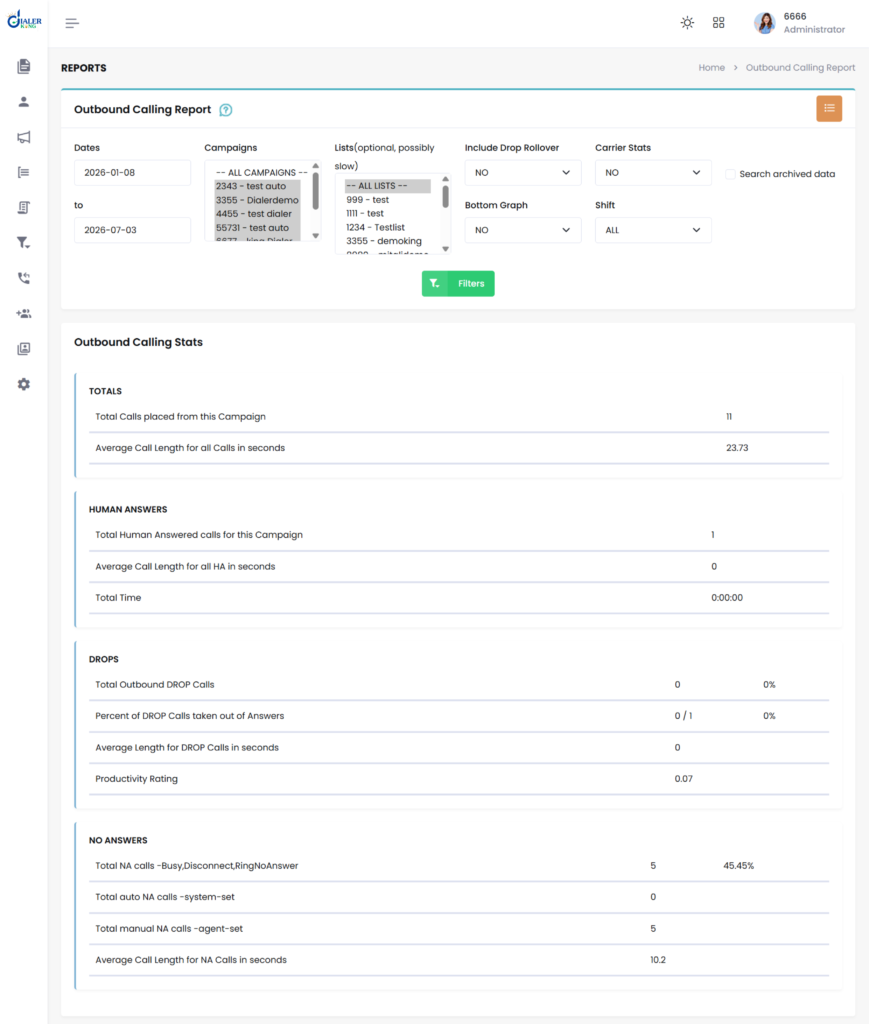
The Outbound Calling Report in VICIdial aggregates call outcome data across your selected date range and campaign filters. It is not just a raw log – it is a structured breakdown of dialing performance across every metric that matters for list management and campaign optimization.
The report includes:
- Total calls dialed within the selected window
- Answered vs unanswered counts with percentage breakdowns
- Drop rate and dead call statistics
- Per-status call counts (busy, no answer, disconnected, machine detected)
- Agent performance metrics (where applicable)
- Campaign-level aggregates for multi-campaign comparisons
For the client requesting answered/not-answered data on every lead, the report exports directly to CSV, giving them a clean row-per-lead output file they can map back to their original list.
Visual Walkthrough: Generating the VICIdial Outbound Calling Report
Generating an Answer vs No Answer report in VICIdial is a straightforward process when you follow the correct navigation path. The screenshots below demonstrate each step, from accessing the reporting interface to viewing the final report output.
Whether you are monitoring a live outbound campaign or reviewing campaign performance at the end of the day, these screens help you quickly access the information needed for campaign analysis.
1. Theme Showcase – Choose Your Preferred VICIdial Interface
VICIdial offers multiple interface themes, allowing organizations to choose a layout that best suits their operational preferences. While the appearance may vary, every theme provides access to the same reporting capabilities and administrative tools. Users can select a familiar interface without affecting report accuracy or functionality.
2. Navigate to Reports – Inbound & Outbound Calling Reports
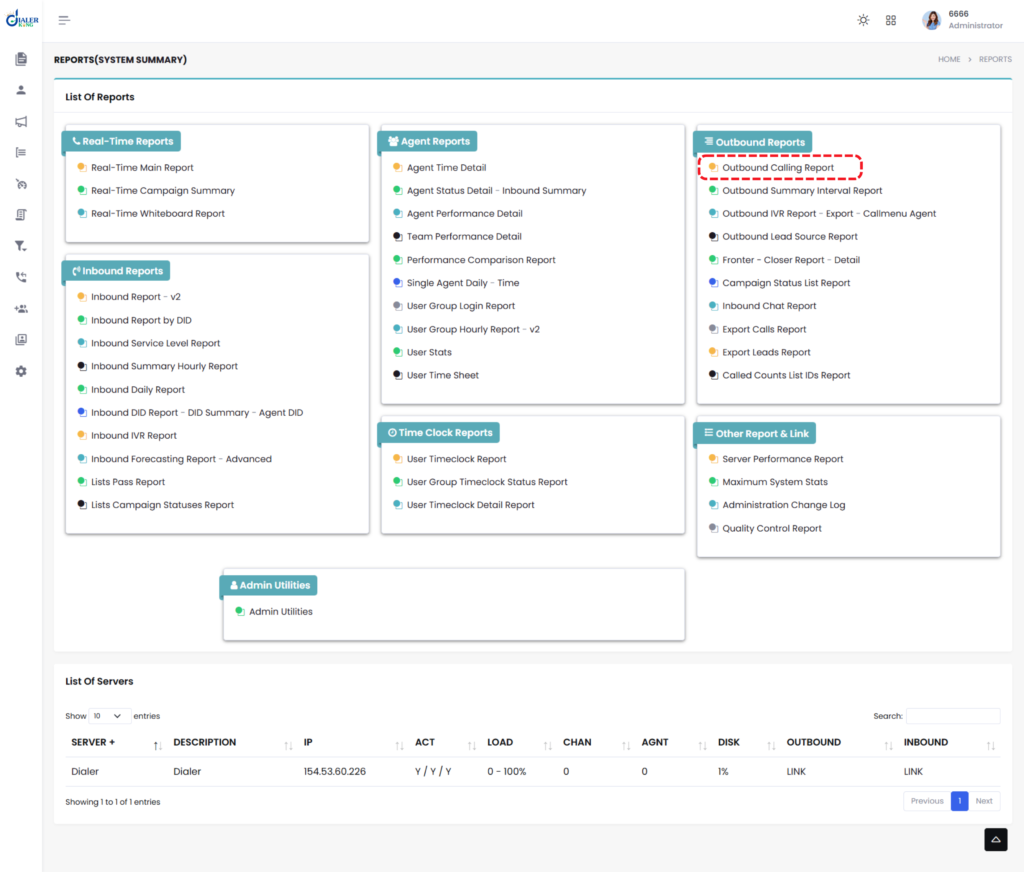
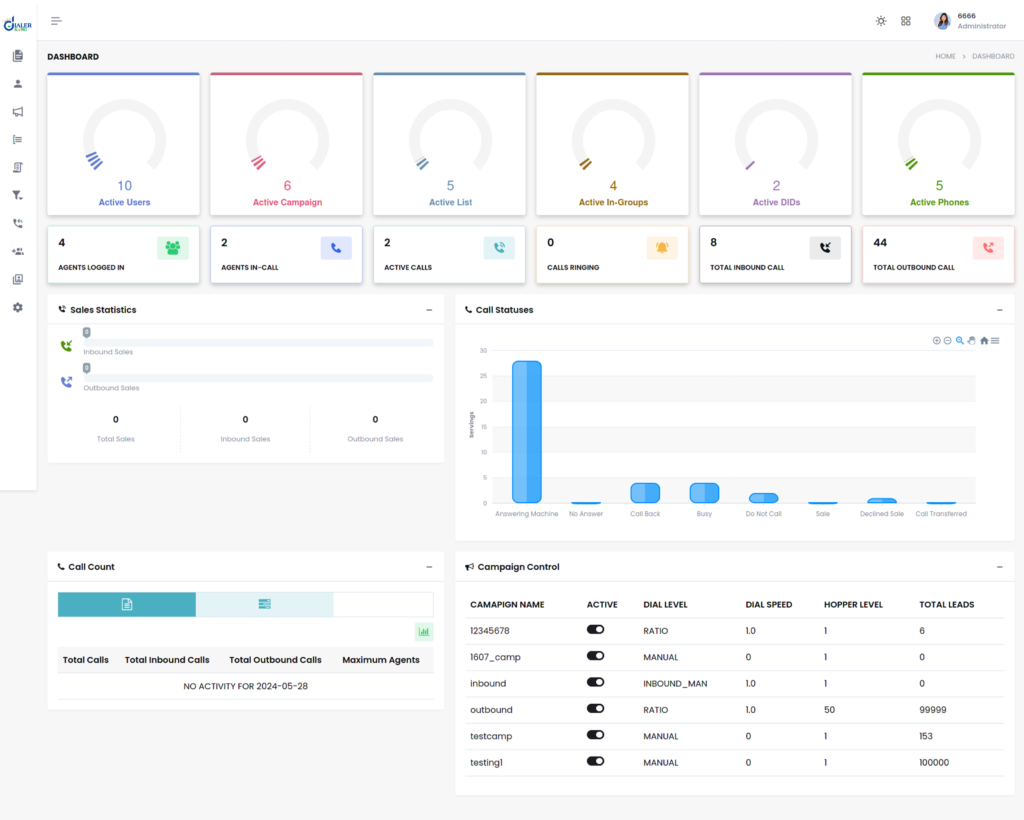
After logging into the VICIdial dashboard, navigate to the Reports section from the main menu. From there, administrators can access both Inbound and Outbound Calling Reports, making it easy to monitor campaign performance, track call activity, and review operational statistics from a centralized location.
3. Select the Outbound Calling Report
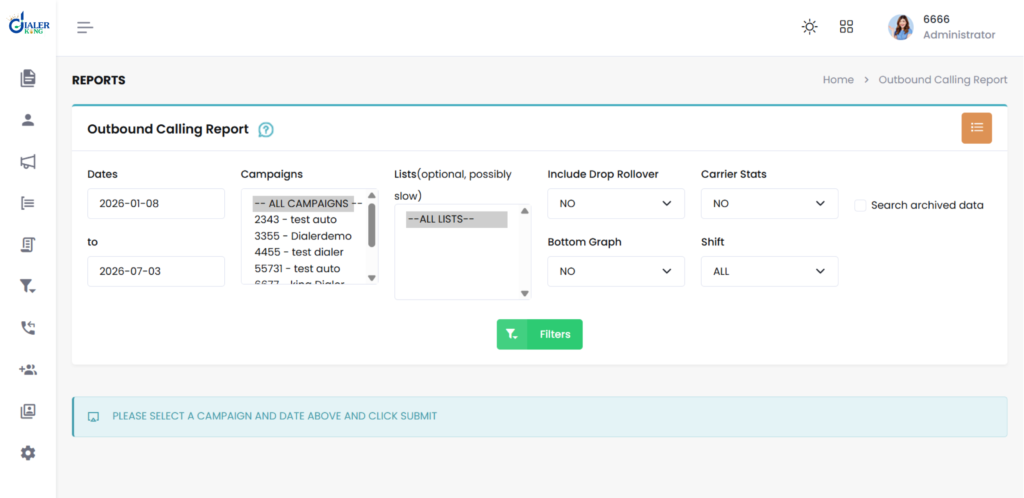
Within the reporting module, choose the Outbound Calling Report. Here you can define the required filters, including the reporting date range, campaign name, user or agent, and call status. Applying these filters allows managers to generate highly targeted reports for specific campaigns or business requirements.
4. Review the Generated Report
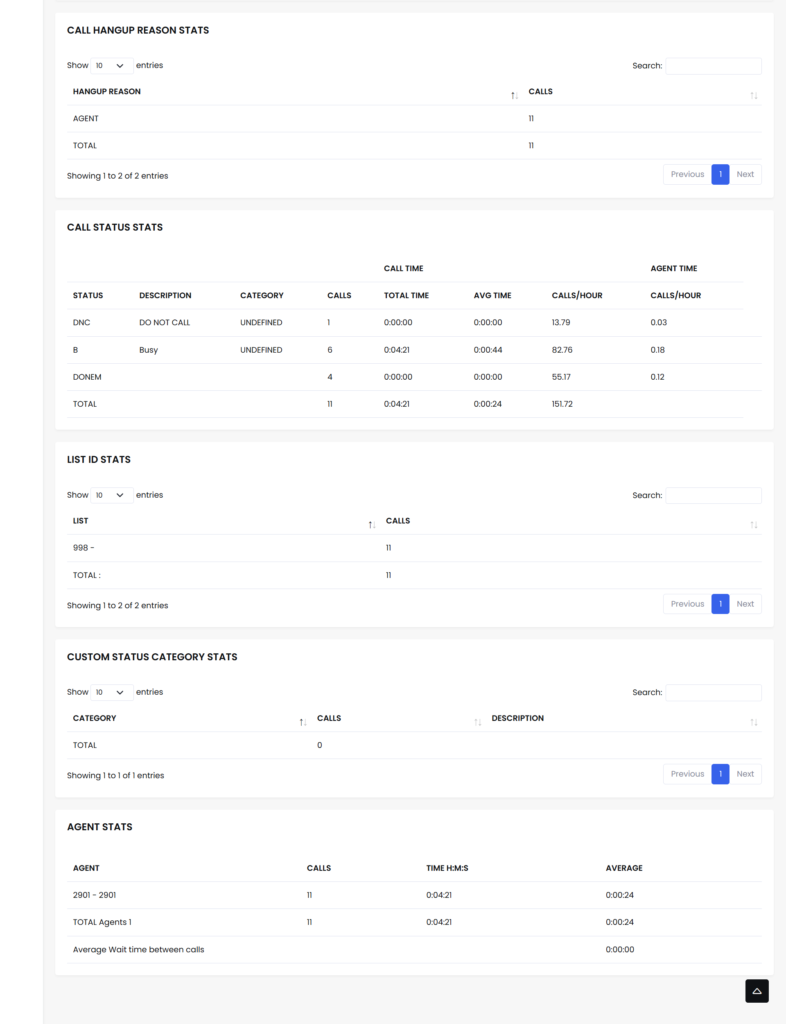
Once the filters are applied, click Submit to generate the report. VICIdial displays a comprehensive report containing key outbound calling metrics, including total calls dialed, answered calls, unanswered calls, busy responses, answering machine detections, disconnected numbers, and other call dispositions.
These reports can be analyzed directly within VICIdial or exported for further reporting, compliance reviews, and campaign optimization.
How to Generate the Outbound Calling Report in VICIdial
Navigating to the report is straightforward once you know where to look. Here is the step-by-step path:
Navigation Path
Reports – Outbound Reports – Outbound Calling Report
Filter Options Available
- Date Range – set the start and end date for the reporting window
- Campaign – select one or multiple campaigns to include
- User / Agent – filter by specific agents or view all
- Statuses – narrow by specific call dispositions if needed
- Group – useful for multi-team deployments
Once filters are set, click Submit to generate the report. The output displays on-screen and can be exported for further analysis. The report refreshes with each submission, so you can adjust filters and re-run instantly without navigating away.
For real-time monitoring during an active campaign, VICIdial’s live dashboard (accessible through the Admin panel) shows current dialing activity, agent status, and live call counts – useful for operations managers who need to confirm the campaign is hitting target throughput before pulling end-of-day reports.
Try It Yourself: DialerKing FREE VICIdial Live Demo
DialerKing offers a FREE VICIdial Live Demo that gives you direct access to the reporting interface – no installation, no setup, no commitment. Here is how to access and navigate the Outbound Calling Report inside the demo:
Step-by-Step Demo Access
Step 1: Open the FREE Live Demo link and complete the access form to enter the demo environment.
Live Demo: https://demo.dialerking.com
Step 2: You will see 10 VICIdial interface themes. For this guide, we use Theme 2 – choose whichever you prefer.
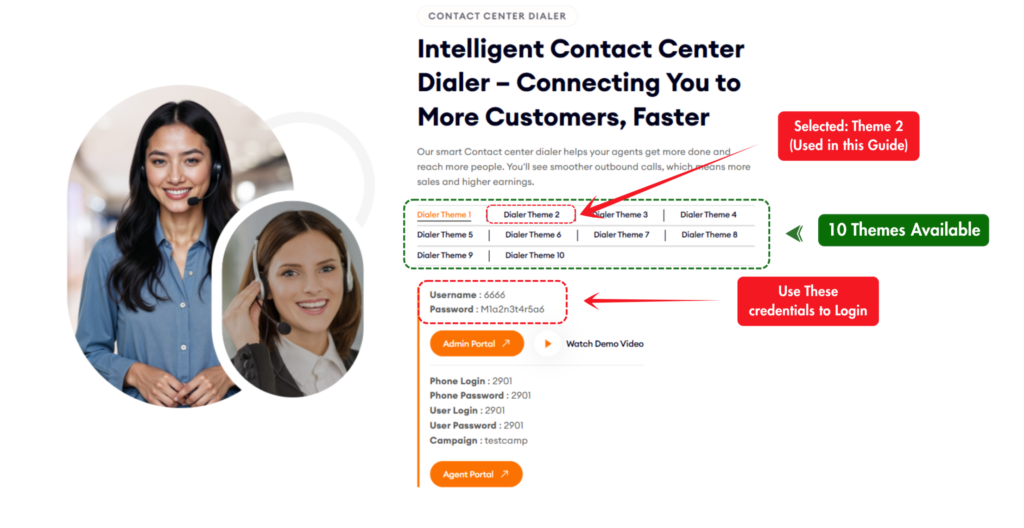
Step 3: Log in using the following credentials:
- Username: 6666
- Password: M1a2n3t4r5a6
Step 4: Once logged in, navigate to: Reports – Outbound Reports – Outbound Calling Report
Step 5: Set your preferred Date Range, select a Campaign, and apply any additional filters.
Step 6: Click Submit. The Outbound Calling Report will generate on-screen with full call statistics, answered/unanswered metrics, drop data, status breakdowns, and agent activity.
Note: Note: The FREE Live Demo is designed to help you explore VICIdial’s reporting interface and understand the workflow. Because it is a demo environment, available data may be limited and will not reflect live production traffic.
Frequently Asked Questions
What is an outbound call example in VICIdial❓
A practical outbound call example in VICIdial would be a scheduled campaign that dials 500 numbers per hour, plays an automated message or simply detects whether a live person or answering machine answered, then logs the result per number. No agent is involved. The system dials, detects the outcome via AMD, assigns a disposition, and moves to the next lead. The final report shows every number alongside its call result – answered, busy, no answer, machine, or disconnected.
Is VICIdial a dialer?
Yes, VICIdial is a full-featured open-source predictive dialer built on Asterisk. It supports predictive, power, and progressive dialing modes and is capable of handling thousands of concurrent outbound calls when deployed on appropriately scaled infrastructure. It includes agent management, campaign configuration, IVR integration, CRM connectivity, and a comprehensive reporting suite – making it far more than a basic dialer.
What is the hopper level in VICIdial❓
The hopper level in VICIdial is the number of leads pre-loaded into the active dialing queue at any moment. It acts as a buffer between your lead list and the live dial engine. Setting the hopper too low causes the dialer to run out of numbers between call cycles, creating idle time and reducing hourly call rates. Setting it too high can cause list burn-out or uneven pacing. For high-volume campaigns, hopper levels are typically set between 100–200 leads based on concurrent channel count
Can VICIdial dial 500 calls per hour with no agents❓
Yes – VICIdial can be configured in auto-dial mode with AMD enabled to dial at rates exceeding 500 calls per hour without any live agents involved. The system dials, detects live answers or machines, logs the disposition, and advances to the next number automatically. This is commonly used for scheduled notification campaigns, list verification, and reach-and-report use cases where the goal is data collection rather than live conversation.
Conclusion
VICIdial high volume outbound calling is a proven solution for organizations that need to reach large contact lists at scale and track every outcome with precision. From understanding how dead calls and hopper levels affect campaign performance, to generating a clean Answer vs No Answer report through VICIdial’s native reporting suite, this guide has covered the full workflow that contact center operators and IT managers need to deploy and manage high-volume outbound campaigns confidently.
Whether you are building a scheduled notification campaign, verifying a contact list, or managing a multi-channel outbound program, VICIdial’s reporting engine gives you the data clarity needed to optimize at every step.
Ready to see it in action? Contact the DialerKing team today to discuss your outbound dialing requirements, or get started immediately with our FREE VICIdial Live Demo and explore the full reporting interface yourself.