- What Happens When an Agent Clicks Dial Next Number
- Core Reasons Behind VICIdial Manual Outbound Dialing Failure
- Real Diagnostic Case: Manual Dial Button Does Nothing
- How to Enable Manual Dial in VICIdial
- Why Are My Leads Not Loading Into the VICIdial Hopper?
- How to Reboot VICIdial Safely
- How to Set Up an Inbound Call in VICIdial
- Preventive Practices for Reliable Dialing
- When Manual Dialing Points to a Deeper Architecture Issue
- Frequently Asked Questions
- Final Thoughts
This guide is written for engineers and administrators managing VICIdial deployments who need a structured way to diagnose a VICIdial manual outbound dialing failure rather than adjusting settings at random. For a contact center running VICIdial, the manual dial button is meant to be the simplest action an agent performs: open a lead, click Dial Next Number, and the platform hands the call to Asterisk for origination. When that click stops producing a call, the failure looks trivial on the surface but is rarely simple underneath.
Manual dialing passes through agent session state, campaign configuration, the lead hopper, database checks, and the Asterisk Manager Interface (AMI) in sequence – and a break at any single point produces the same blank, unresponsive screen.
We’ll walk through what actually happens behind the Dial Next Number click, the most common failure points, a real diagnostic case, and the fixes that resolve them – along with the related questions administrators ask most often around hopper loading, manual dial permissions, safe reboots, and inbound call setup.
What Happens When an Agent Clicks Dial Next Number
When an agent presses Dial Next Number on the agent interface – whether that’s the standard vicidial.php screen or a custom theme’s agent.php equivalent – the request is sent to the server, which runs a short sequence of checks before anything reaches the telephony layer. First, it confirms the agent’s live session record in the vicidial_live_agents table shows a status that permits dialing.
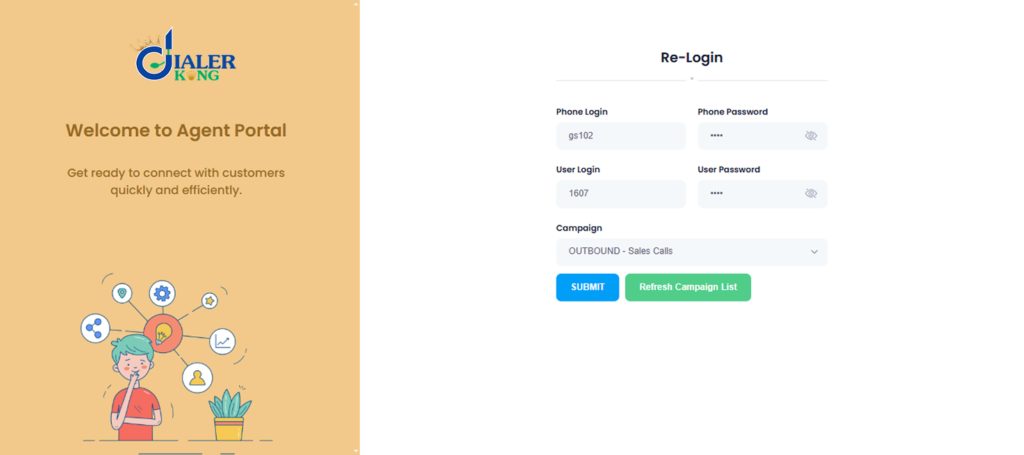
The screenshot above shows the standard VICIdial agent login screen, where an agent enters their Phone Login, Phone Password, User Login, and selects the assigned Campaign before starting a session. These four fields aren’t just authentication – they also determine which extension Asterisk will bridge calls to and which campaign’s dial rules apply to that session.
If any of these values are mismatched or incomplete, the agent can still appear “logged in,” but the backend session record won’t be fully ready for origination. This is exactly the kind of gap that leads to a manual dial click producing no result later in the session.
Next, it confirms the campaign the agent is logged into allows the manual dial action at all. It then resolves the lead reference – either the currently loaded record or the next qualifying one – and, if every check clears, issues an originate instruction over the Asterisk Manager Interface. Asterisk places the outbound leg and bridges it to the agent’s extension, and the screen updates to reflect a live call.
Because this is a synchronous chain, a failure at any single link stops the process silently. An unready agent record, a campaign restriction, a missing or invalid lead, a broken AMI connection, or a rejected trunk all produce the exact same symptom from the agent’s seat: the button does nothing. That’s why administrators often assume a front-end bug when the actual fault sits several layers back, in the database or the telephony stack.
Core Reasons Behind VICIdial Manual Outbound Dialing Failure
Agent Session Status Not Actually Ready
Even when an agent’s screen shows the dial interface as active, the underlying vicidial_live_agents record can still carry a PAUSED, INCALL, or DISPO status left over from a previous action that didn’t clear correctly – a dropped connection, a slow disposition save, or a mid-call browser refresh. VICIdial checks this database status before permitting origination, so a stale status flag blocks the click even though nothing on screen looks wrong to the agent.
Campaign Dial Settings Restricting the Action
Every campaign carries its own dial method and permission flags. A campaign configured around predictive or ratio-based dialing without manual dial explicitly permitted will accept the button click and simply never process it. Reviewing the campaign’s own configuration – not just the agent’s individual permissions – is a required step, and one that’s easy to skip when troubleshooting starts at the agent level.
Hopper or Lead Availability Issues
Manual dialing still depends on a valid, loaded lead reference. If the agent’s current lead fell out of the working hopper, was reassigned, or crossed a calling-hours restriction between load and click, VICIdial has nothing left to dial and the action ends before it ever reaches Asterisk.
Asterisk Manager Interface (AMI) Disruption
The originate step in VICIdial’s architecture always routes through AMI to Asterisk. If that connection has dropped – often after a partial service restart, a manager.conf permission change, or a network interruption between the web and telephony layers – VICIdial can complete every internal check and still fail to produce an actual call.
SIP Trunk or Carrier-Side Rejection
Less commonly, the request reaches Asterisk and Asterisk attempts the call, but the carrier trunk rejects it – an expired registration, a concurrent call limit, or a malformed outbound caller ID. This produces a near-identical experience for the agent, even though the fault sits entirely outside VICIdial.
User Permission Gaps
A user account created without the correct user level, or with manual dial access explicitly disabled at the user group, will see the button but never trigger a result. That’s a permissions gap rather than a system fault, and it’s worth ruling out before any deeper investigation.
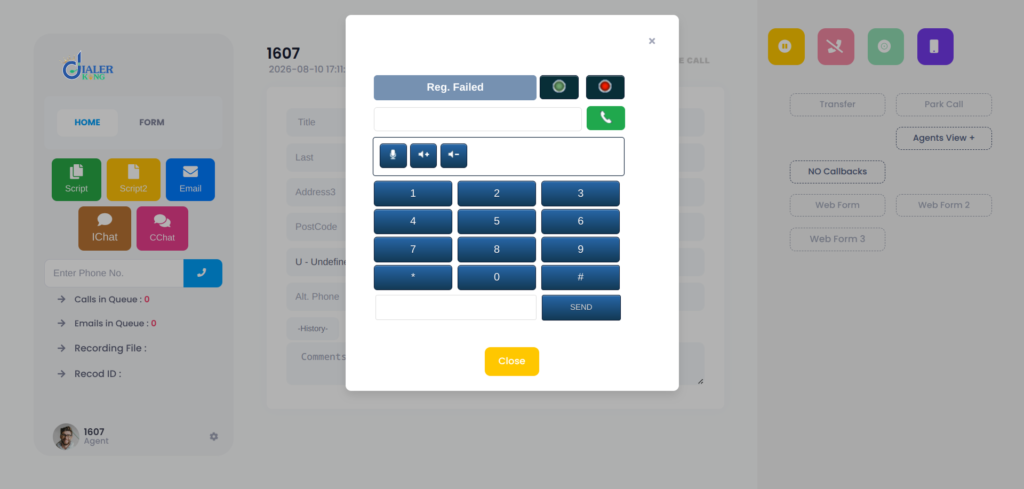
The image shows the agent-facing dial pad and webphone panel, where an agent manually enters a number and presses Call – or clicks Dial Next Number to pull the next hopper lead. This is the exact interface element at the center of a VICIdial manual outbound dialing failure: everything here can look completely normal and clickable, while the request silently fails several layers back at the session, campaign, or AMI level, as covered in the diagnostic case below.
Real Diagnostic Case: Manual Dial Button Does Nothing
A useful way to see how these failure points play out is to walk through an actual case. An agent logs in successfully, sees the Dial Next Number button, and clicks it. Nothing follows – no outbound call, no screen update, no Asterisk originate, and no recorded VICIdial action of any kind. On the surface, everything about the login looked normal, which is what makes this symptom set confusing to triage from the agent’s side alone.
The first diagnostic step is checking the agent’s live session state directly against the database rather than trusting the on-screen appearance:
SELECT user, status, campaign_id
FROM vicidial_live_agents;The query returns:
TEST_AGENT | PAUSED | SAMPLE_CAMPAIGNThe agent’s own database record shows PAUSED, despite the interface displaying a ready dial screen. That mismatch alone explains the silent failure – VICIdial’s backend checks this exact field before allowing origination, and a PAUSED status halts the request before it goes anywhere near Asterisk.
The next step is confirming the campaign configuration isn’t contributing to a second cause. Checking SAMPLE_CAMPAIGN’s dialing settings shows:
Campaign: SAMPLE_CAMPAIGN
auto_dial_level = 0An auto_dial_level of 0 governs adaptive and ratio-based pacing for automatic dialing – it doesn’t, by itself, disable the manual dial button. Confirming this value rules out a competing automatic dial method as the cause and narrows the fault squarely to the stale PAUSED session record.
Resolution: force-clear the agent’s session through the real-time admin panel or a controlled logout at the database level, then have the agent log back in cleanly. Confirm the status flips to a ready state before retesting the dial action.
If the status returns to PAUSED immediately after login, the next place to look is pause-code automation or a websocket/keep-alive issue on the agent’s browser session, rather than repeating the same logout-and-retest cycle.
How to Enable Manual Dial in VICIdial
Manual dial access is controlled in two places – the user group and the campaign – and both need to agree before an agent can use the feature:
Open Admin – User Groups and confirm the target group has manual dial access enabled under the agent screen options.
Open the campaign under Admin – Campaigns and confirm manual dial is permitted – many predictive or ratio campaigns still allow it as a secondary dial method alongside automatic dialing.
Check the campaign’s dial method and auto dial level settings to make sure the campaign isn’t hard-locked into automatic-only origination.
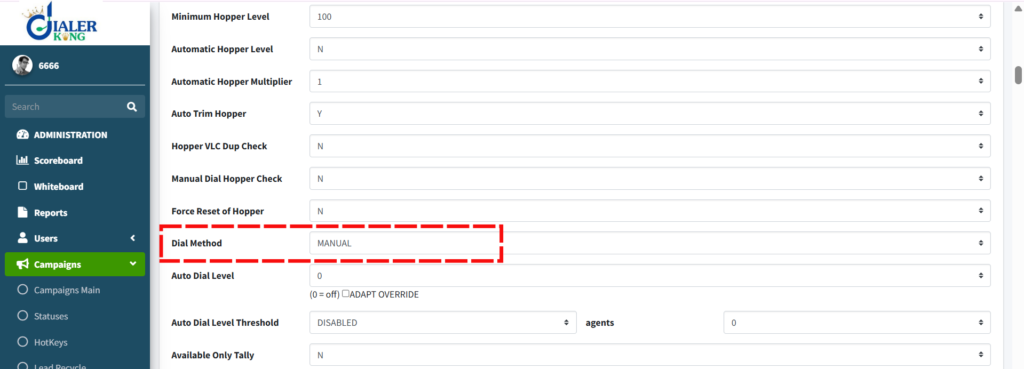
This screenshot shows the campaign’s Dial Method field set to Manual inside Admin → Campaign → Modify. This single setting determines whether the campaign will process manual dial requests at all – a campaign left on a predictive or ratio dial method can reject manual dial clicks even when every agent-side permission is correct.
Confirming this field matches the intended dialing mode is one of the fastest ways to rule out a campaign-level cause of manual outbound dialing failure.
Confirm the agent’s login session includes a valid extension, since Asterisk needs a destination to bridge the outbound leg to.
Save all changes, then have the agent log out fully and back in so the updated permissions load into a fresh session before retesting.
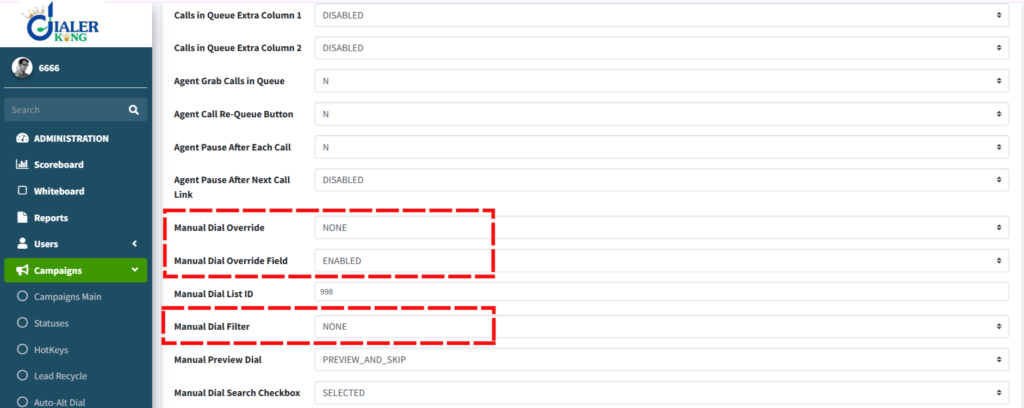
Beyond the basic Dial Method toggle, VICIdial also exposes finer manual dial controls under the campaign’s Manual Dial Settings – including Manual Dial Override, Manual Dial Filter, and Manual Dial Prefix, shown below.
Override lets manual dialing bypass certain automatic restrictions, the filter controls which leads are eligible for manual selection, and the prefix is prepended to outbound numbers for routing or compliance purposes. A misconfigured filter or prefix here can make manual dialing appear broken even when the core Dial Method and agent permissions are all correctly set.
Why Are My Leads Not Loading Into the VICIdial Hopper?
The hopper (vicidial_hopper) is populated by a background process that pulls qualifying leads from a campaign’s active lists based on list status, calling-hours restrictions, and the campaign’s own active state. When leads stop appearing, the cause is almost always one of the following, checked in roughly this order:
- The list is not marked Active, or the Active flag was toggled off after a recent data load.
- Local call time restrictions on the leads’ area codes fall outside the campaign’s permitted calling window.
- The campaign itself isn’t marked Active, or the hopper level is set too low relative to the current agent count and dial ratio.
- The leads were already dialed and dispositioned with a status excluded from re-dial rules, such as DNC or a completed sale.
- Duplicate-lead checking is filtering out records that match entries already present elsewhere in the system.
- The hopper-fill background process itself has stopped running, which is worth ruling out directly rather than assuming it’s a data problem.
Checking hopper counts and each list’s Active status is the fastest first diagnostic step, and it resolves the majority of hopper-loading complaints before any list needs to be rebuilt.
How to Reboot VICIdial Safely
A full server reboot is a legitimate fix for some issues, but it should be treated as a last resort rather than a first response – most manual dial failures resolve at the service or database layer without ever restarting the server.
Check for active calls across the system before touching any service. A hard reboot mid-shift drops live customer calls and interrupts agents already on the phone.
Restart only the affected service first – for example, restarting Asterisk for telephony-layer issues, or restarting the web service for interface problems – rather than rebooting the whole server.
If a full reboot is genuinely required, such as after a kernel update or memory exhaustion, schedule it outside active calling hours and give agents advance notice.
After reboot, confirm Asterisk has registered successfully with every trunk, confirm the database service is running, and confirm the hopper-fill and campaign background processes have restarted – these don’t always resume automatically after every reboot path.
Test both manual and automatic dialing with a small group of agents before reopening the full floor.
How to Set Up an Inbound Call in VICIdial
Outbound dialing failures are sometimes diagnosed alongside inbound routing checks, since both share the same asterisk and trunk infrastructure. A basic inbound setup follows this sequence:
- Add the DID under the inbound administration screens and associate it with the carrier trunk it arrives on.
- Create the inbound group and set its routing type – a ring group, a queue tied to a specific campaign, or an entry point into an IVR menu.
- Assign agents or a campaign to the inbound group so accepted calls have somewhere to land once they’re answered.
- Configure the trunk’s inbound context in the dialplan so calls arriving on that DID are handed to the correct inbound group instead of falling through to a default extension.
- Place a live test call to the DID and confirm it appears correctly in reporting and reaches the intended agent or IVR menu.
Because inbound and outbound calls share the same trunk layer, a registration or trunk fault uncovered while investigating a manual dialing failure is worth checking against inbound call delivery as well.
Preventive Practices for Reliable Dialing
- Monitor agent session status on the real-time screen for stuck PAUSED or INCALL states, rather than waiting for an agent to report a dead button.
- Schedule regular checks of hopper counts against each campaign’s active lists so gaps are caught before a shift starts.
- Keep AMI credentials and manager.conf permissions documented and version-controlled so they survive server changes without silently breaking origination.
- Log Asterisk originates failures separately from application-layer errors to speed up root-cause identification when a fault does occur.
- Build a lightweight scheduled check that confirms AMI connectivity, database write access, and trunk registration – rather than discovering a failure only after an agent reports it.
When Manual Dialing Points to a Deeper Architecture Issue
For larger deployments, older ViciBox or SVN codebase versions, or heavily customized agent themes, manual dialing failures sometimes trace back to configuration drift built up over years of incremental changes rather than a single misconfigured setting.
DialerKing works with contact centers globally on VICIdial and Asterisk architecture – from AMI-level automation and custom API development to multi-server deployments and CRM integrations – and can review a dialer environment end-to-end when troubleshooting keeps circling back to the same symptoms. If your team has already checked agent status, campaign settings, and the hopper without a lasting fix, an architecture-level review is usually the next productive step.
Frequently Asked Questions
Why are my leads not loading into the VICIdial hopper❓
The most common causes are an inactive list, a campaign that isn’t marked Active, calling-hours restrictions on the leads’ area codes, a hopper level set too low for the current agent count, or leads already disposed of with a status excluded from re-dial. Checking each list’s Active flag and current hopper count is the fastest first step.
How to reboot VICIdial❓
Confirm no active calls are in progress, restart only the affected service (Asterisk or the web service) rather than the full server where possible, and reserve a full reboot for issues that genuinely require it. Schedule any full reboot outside calling hours and verify trunk registration, database status, and hopper-fill processes afterward.
How to set up an inbound call in VICIdial❓
Add the DID and associate it with the correct carrier trunk, create an inbound group with the desired routing type, assign agents or a campaign to receive the calls, and configure the trunk’s inbound context so calls land on the correct inbound group. Test with a live call before relying on the route.
Does a paused agent status always cause manual dialing failure❓
Not always, but it’s one of the most common and easiest-to-miss causes, because the agent’s screen can appear ready while the underlying database record still shows PAUSED from a previous action. Checking the live agent status directly against the database is a fast way to confirm or rule this out.
Can a campaign support both automatic and manual dialing at the same time❓
Yes. Manual dial permission is controlled separately from the campaign’s auto dial level and ratio settings, so a campaign running predictive or ratio-based dialing can still permit agents to manually dial specific leads when needed.
Final Thoughts
Manual outbound dialing failure in VICIdial is almost never a single broken feature – it’s a chain of checks across agent status, campaign configuration, hopper availability, and Asterisk call origination, and the right fix depends entirely on which link actually broke. Working through that chain in order, starting with the agent’s live session status and campaign permissions before touching the server, resolves the majority of cases without a reboot at all.
For failures that persist or keep recurring, especially across custom themes or multi-server deployments, a structured architecture review tends to surface the root cause faster than repeated one-off fixes.