- What Is the VICIdial Agent Web Client?
- How the Login System Works: URLs and Credentials
- Campaign Assignment and the Agent Session
- Phone Integration: What Agents Configure at Login
- Creating and Managing Agent Accounts
- Setting Up Remote Agents in VICIdial
- Why Businesses Rely on the VICIdial Login Architecture
- Common Login Issues and How to Fix Them
- Frequently Asked Questions
- Conclusion: Getting the Most from the VICIdial Agent Web Client Login Page
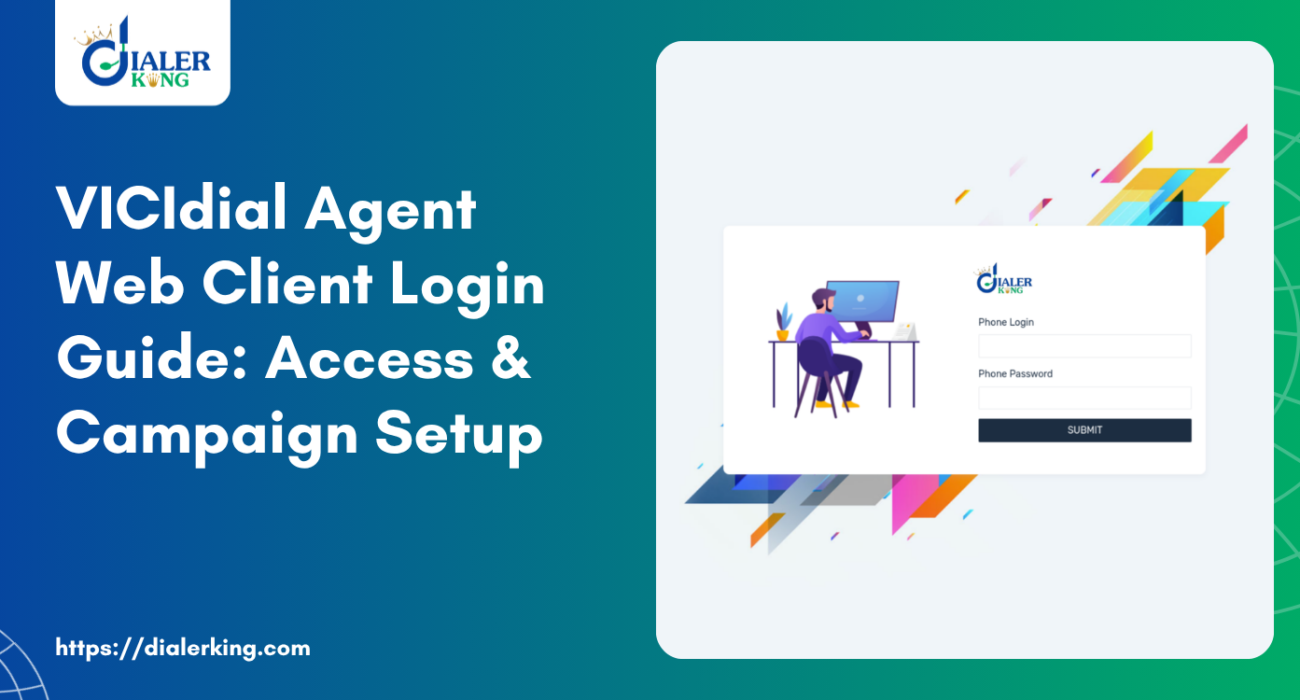
The VICIdial Agent Web Client Login Page is the single browser-based entry point through which every agent in a VICIdial-powered contact center begins their workday. Understanding exactly how this login system works – from the correct URL to campaign selection, phone configuration, and common error fixes – directly determines how fast your team gets productive each shift.
This guide covers everything an IT manager, system administrator, or contact center operator needs to know: access URLs, credential management, campaign assignment logic, remote agent setup, and a practical troubleshooting section drawn from real deployment scenarios.
What Is the VICIdial Agent Web Client?
VICIdial is an open-source contact center suite built on Asterisk. Unlike desktop software that requires installation on every workstation, the Agent Web Client is a browser-rendered interface – meaning agents can log in from any machine on the network without software deployment. This web-first design significantly reduces IT overhead in high-turnover environments.
The agent interface handles inbound, outbound, and blended call sessions, script display, disposition coding, lead management, and real-time communication with supervisors – all from within a single browser tab. The administrative side operates from a separate URL and is restricted to managers and system administrators.
The Agent Web Client has evolved over multiple release cycles. The widely referenced Agent Web Client 2.0 introduced an updated layout and improved stability for high-concurrency environments. Both the legacy and 2.0 versions rely on the same underlying authentication flow and campaign architecture described in this guide.

How the Login System Works: URLs and Credentials
The Admin URL vs. the Agent URL
VICIdial runs on a standard Apache/PHP stack. After a server installation, the system exposes two primary entry points:
Admin Interface: http://[your-server-IP]/vicidial/admin.php
Agent Web Client Login Page: http://[your-server-IP]/vicidial/agc/vicidial.php
The /vicidial/agc/vicidial.php path is the one agents use every single day. The admin.php path is reserved for supervisors, administrators, and campaign managers.
Default Credentials and Immediate Security Steps
VICIdial installs with default login credentials of username: admin and password: 1234. These credentials apply to the administrative interface and must be changed immediately after installation – before the system goes anywhere near a production environment.
For individual agent accounts, credentials are assigned manually by the administrator through the admin panel. There is no self-registration flow on the Agent Web Client Login Page by design – access is entirely admin-controlled, which suits the security posture most contact centers require.
Try Our Free Live VICIdial Agent Demo

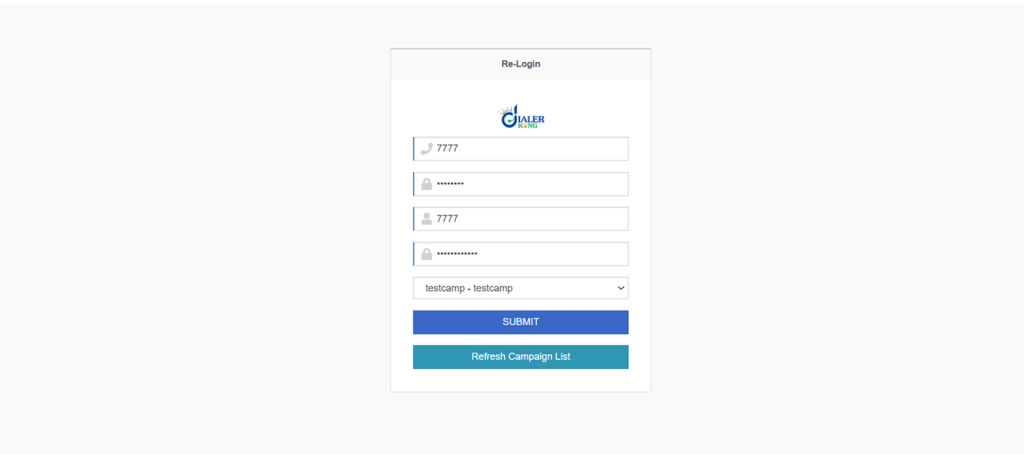
Live Demo: https://demo.dialerking.com

Agent Portal: https://demo.kingasterisk.com/theme-3/agent_portal/dialer.php

Phone Login: 2901
Phone Password: 2901

User Login: 2901
User Password: 2901

Campaign: testcamp

No registration required. Use the credentials above to access the demo.Campaign Assignment and the Agent Session
What Is a Campaign in VICIdial?
In VICIdial, a campaign is the operational container that defines how agents interact with contacts. It specifies the dial method (preview, progressive, predictive, or manual), the lead list, disposition options, and scripts. Every agent session is tied to exactly one campaign at login.
The “Agent Web Client: Campaign Login” Screen
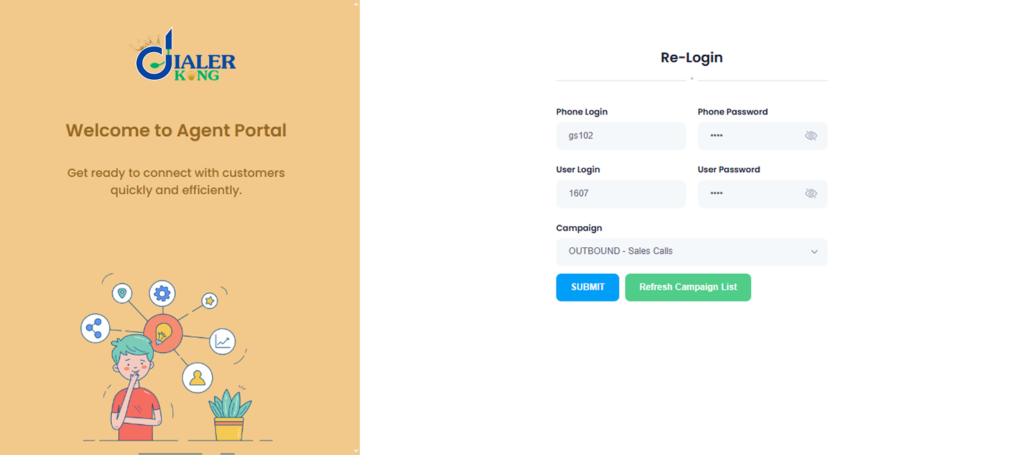
After entering valid credentials on the VICIdial Agent Web Client Login Page, the agent is presented with a campaign selection screen – often referred to in documentation as the “Agent Web Client: Campaign Login” view. Here the agent selects:
- The campaign they are working for that session
- Their phone extension or SIP number
- The phone type (IP phone, softphone, external number)
This multi-step login approach gives supervisors tight control over which agents work which campaigns, and it prevents agents from accidentally logging into the wrong queue – a common operational problem in multi-campaign environments.
Real-World Use Case: Multi-Campaign Insurance Center
Scenario: A mid-sized insurance firm runs three simultaneous outbound campaigns – new policy leads, renewal reminders, and a cross-sell campaign for existing customers. Different agent teams handle each list, and compliance requires that dispositions and scripts remain strictly separated.
With VICIdial’s campaign-at-login model, the administrator creates three separate campaigns with distinct lead lists, scripts, and disposition codes. Agents log into the Agent Web Client Login Page each morning, select their assigned campaign, and the system automatically loads the correct script, dial settings, and lead queue.
Supervisors monitor each campaign in real time from the admin interface. If an agent needs to switch campaigns mid-shift, they log out, return to the VICIdial Agent Web Client Login Page, and re-authenticate into the new campaign – clean, auditable, and compliant.
Phone Integration: What Agents Configure at Login
At login, agents specify how calls should be routed to them.
Supported Phone Session Types
SIP Extension: An agent’s registered SIP number on the local Asterisk server. The most common setup for on-premise teams.
External Number (VDAD): Routes calls to a PSTN number. Used for remote agents dialing in from a landline or mobile.
Softphone / WebRTC: Browser-based audio handled through a compatible WebRTC client.
The phone type is selected at the point of login, not in a separate settings area. This means every session is explicitly configured, which reduces the chance of stale phone settings causing call delivery failures during a shift.
Creating and Managing Agent Accounts
How to Create a User in VICIdial
User creation in VICIdial is handled entirely through the admin interface (admin.php). The process follows a straightforward structure:
- Log in to the admin interface at /vicidial/admin.php using admin credentials.
- Navigate to Admin – Users from the top navigation.
- Select “Add a New User” to open the user creation form.
- Set the User ID (login name), password, full name, and user level.
- Assign the user to a campaign or leave it open for campaign selection at login.
- Set the phone extension the user will log in with by default.
- Save the record – the account is immediately active.
User levels in VICIdial control access scope. Level 1 is a standard agent. Higher levels unlock supervisor tools, reporting dashboards, and ultimately full admin access. The VICIdial agent login page itself only serves level-1 users; supervisors and admins use admin.php for their own access.
User Account Security Practices
- Enforce unique, strong passwords for every agent account.
- Disable accounts immediately when agents leave – VICIdial has no automatic deactivation.
- Use descriptive User IDs (e.g., first initial + last name) rather than numeric IDs to simplify audit logs.
- Regularly audit the user list through Admin – Users to identify dormant accounts.
Setting Up Remote Agents in VICIdial
Remote agents – those working from locations outside the server’s local network – require a slightly different configuration but still use the same VICIdial Agent Web Client Login Page. The browser-based interface means there is no client software to install. What changes is the phone routing.
The agent logs into the VICIdial Agent Web Client Login Page from their remote browser, selects the campaign, enters their external number as the phone, and the system dials them to bridge into the session.
For remote setups where latency and call quality are priorities, many deployments also configure SIP-over-VPN so remote agents use a SIP extension rather than an external number – delivering the same audio quality as an on-premise setup. This is separate from VICIdial configuration and handled at the network/Asterisk level.
Why Businesses Rely on the VICIdial Login Architecture
The login-first, campaign-assigned model that VICIdial uses is not a limitation – it is a deliberate operational design that addresses real contact center management challenges.
Operational Control Without Complexity
When every agent session starts with an explicit login to a named campaign, supervisors gain immediate visibility into exactly who is working, on which campaign, and from what phone. No guesswork, no phantom sessions. This maps directly to the reporting and compliance needs of industries like financial services and healthcare, where documentation of agent activity is non-negotiable.
Flexible Workforce Management
Because the Agent Web Client runs entirely in a browser, businesses can seat agents in different offices, redeploy them between campaigns mid-day, or accommodate fully remote teams – all without changing software configurations on individual machines. The login page becomes the central control point.
API-Level Access for Custom Integrations
The VICIdial agent login API allows developers to integrate authentication and session management into custom CRM platforms, workforce management tools, or supervisor dashboards. The API endpoint exposes the ability to programmatically log agents into campaigns, check session status, and trigger logouts – enabling automated staffing workflows in complex environments.
This is valuable for operations that manage agent scheduling through a third-party WFM tool and want login events to sync.
Common Login Issues and How to Fix Them
Error: “Login Failed – Incorrect Username or Password”
The most basic error. Verify the User ID and password in Admin – Users. Check that the account status is set to Active. Reset the password if the agent has forgotten it – there is no self-service password reset on the Agent Web Client Login Page.
Error: Agent Logs In but Cannot Take Calls
Confirm the extension entered at login matches the registered peer name exactly.
Error: Campaign Not Available
The campaign the agent is trying to join may be paused or set to inactive. In Admin – Campaigns, check the campaign’s Active setting. Also confirm the agent’s user record is not restricted to a campaign that no longer exists.
Frequently Asked Questions
What is the default password for VICIdial❓
The default VICIdial admin credentials are username “admin” and password “1234”. These are set during installation and must be changed immediately before the system is used in production. Individual agent passwords are set by the administrator when creating each user account – there are no system-wide default agent passwords.
How do I create a user in VICIdial❓
Log into the admin interface at /vicidial/admin.php, navigate to Admin – Users, and select “Add a New User.” Fill in the User ID, password, full name, user level (1 for standard agent), and phone extension. Save the record. The agent can then log into the VICIdial Agent Web Client Login Page immediately using those credentials.
How do I set up a remote agent in VICIdial❓
Create the agent’s user account normally through admin.php. When the remote agent logs into the VICIdial Agent Web Client Login Page, they select “VDAD” or “External” as their phone type and enter their external phone number. The system dials them at that number to bridge the call. For better audio quality, consider SIP-over-VPN to allow remote agents to register a SIP extension instead.
Is there an Agent Web Client download for offline use❓
No. The VICIdial Agent Web Client is server-rendered and operates entirely through a browser – there is no standalone downloadable client for offline use. Agents always connect to the server’s URL. This is by design: it centralizes all session data, recordings, and dispositions on the server, simplifying data management and compliance documentation
Conclusion: Getting the Most from the VICIdial Agent Web Client Login Page
The VICIdial Agent Web Client Login Page is far more than a password prompt – it is the structured entry point that connects agents, campaigns, and telephony into a coherent operational session. When configured correctly, it gives administrators precise control over who works which campaign, from what phone, and when.
When something goes wrong at login, the modular architecture makes root-cause identification straightforward: credentials, phone registration, campaign status, and server health are distinct, checkable layers.
For teams scaling their VICIdial deployments – whether adding remote agents, integrating a custom CRM via the agent login API, or migrating to Agent Web Client 2.0 – understanding the login flow at this level of detail prevents hours of reactive troubleshooting.
Need expert help deploying, configuring, or troubleshooting VICIdial for your contact center? The DialerKing team has deployed VICIdial environments ranging from small teams to large multi-site operations. Contact us to discuss your setup requirements.