Your agents look at the VICIdial screen for eight hours a day. Your managers and clients open the admin panel every time they check a report. If both screens look like a stock install, your brand is missing from the place where most of the work happens.
This guide covers VICIdial branding from start to finish: where the files live, what to change, and how to keep your changes after an update. Before the steps, a few quick answers about VICIdial itself.
Who Created and Maintained VICIdial?
VICIdial is developed and maintained by the Vicidial Group. Nobody “owns” it the way a vendor owns locked software. The code is open source under the AGPLv2 license, so anyone can download it, install it and edit it. That openness is what makes VICIdial branding possible: you have the source files that draw the screens. If you plan to share your modified version with others, read the license terms first.
What Is VICIdial Used For?
VICIdial is an open-source contact center software and dialer suite. It runs on Asterisk, with Apache, PHP, Perl and MariaDB underneath. Teams use it for:
- Outbound campaigns (predictive, progressive and manual dialing)
- Inbound queues and IVR menus
- Blended inbound and outbound work
- Call recording and DNC lists
- Live agent monitoring and historical reports
Agents work in /agc/vicidial.php. Managers work in /vicidial/admin.php. Those two are the screens VICIdial branding focuses on.
What Does VICIdial Mean?
It is a product name, not a formal acronym. The “dial” part points to the job it does, which is dialing. Beyond that, the name is simply the brand of the software.
How Much Does VICIdial Cost?
The software license costs nothing. Your real costs are:
- Server hardware
- Carrier minutes (SIP trunks)
- Installation and tuning
- Support
- Any custom development
There is no separate VICIdial license fee for branding, but customization may require development time or professional support.
Why VICIdial Branding Matters
There are three practical reasons:
- Agents: One consistent screen with your logo and colors feels like your own tool, and new agents settle in faster.
- Clients: If you run campaigns for other businesses, they see your admin pages and reports. A branded interface looks more trustworthy than a default one.
- Resale: If you offer dialer setups to customers, you can present the system under your own name.
Good VICIdial branding is also about readability. Pick colors with enough contrast for long shifts.
Step 1: Back Up Everything
Never edit a live dialer without a copy. Run this first:
cp -a /var/www/html /root/web_backup_$(date +%F)
mysqldump -u root -p asterisk > /root/asterisk_$(date +%F).sqlDo the work on a test server first if you have one. Agents are on live calls, and a broken PHP file locks them out.
Step 2: Find the Logo and Header Files
Find which image and file draw the logo in your version:
cd /var/www/html
ls agc/images | grep -i logo
ls vicidial/images | grep -i logo
grep -lniE "logo" agc/*.php vicidial/*.php | headOpen the files from the last command and note which image each one loads. Check the size of the current image:
file agc/images/your-logo-file.pngMake your new logo the same dimensions, or a close ratio. Otherwise the header layout shifts. Save the original, then copy yours over it:
cp agc/images/your-logo-file.png agc/images/your-logo-file.png.orig
cp /root/brand/logo-agent.png agc/images/your-logo-file.pngRepeat for the admin images folder.
Step 3: Set Your Colors With a Custom Stylesheet
Keep your styling in one separate file. Create /var/www/html/agc/brand.css:
:root {
  --brand: #0b5ed7;
  --brand-dark: #08408f;
}
body {
  font-family: "Segoe UI", Arial, sans-serif;
}
/* Example selectors only. Confirm real ones in your browser (F12). */
.header-bar {
  background: var(--brand);
  color: #ffffff;
}
a:hover {
  color: var(--brand-dark);
}Class and ID names differ between VICIdial versions, so right-click an element in your browser and choose Inspect to find the real ones.
Next, make a copy of the PHP file and tell it to load your stylesheet:
cp agc/vicidial.php agc/vicidial.php.origIn vicidial.php, find where the existing stylesheet is printed and add a line beside it:
echo "<link rel=\"stylesheet\" type=\"text/css\" href=\"brand.css\" />\n";Do the same in the admin header file you found in Step 2, with the stylesheet path adjusted.
In many versions you can also change Screen Labels and Agent Screen Colors from the admin panel, in the campaign settings. Check those first. They are safer than file edits, and they survive updates.
Step 4: Change the Page Title and Favicon
Search for the title line:
grep -n "<title>" agc/vicidial.php vicidial/admin.phpReplace the default text with your company name. Then add your favicon:
Always check syntax after editing PHP:
php -l /var/www/html/agc/vicidial.phpYou want the message No syntax errors detected. If you see an error, restore the .orig file and try again.
Step 5: Check the Login Screen and Reports
Load it in a private browser window and press Ctrl+F5 to skip the cache. Reports usually share the admin header, so your logo and CSS carry over. Still, open a few pages, such as the real-time report and agent performance, and check each one. Some report pages print their own headers.
Step 6: Keep Your VICIdial Branding After Updates
This is where most people lose their work. VICIdial updates may involve svn up and perl install.pl, and updates or installation processes can overwrite modified web files.”
Before your first update, save your changes as a patch:
mkdir -p /root/brand
diff -u agc/vicidial.php.orig agc/vicidial.php > /root/brand/agent.patchKeep your logos, favicon and brand.css in /root/brand too. After every update, run this:
cd /var/www/html
cp /root/brand/logo-agent.png agc/images/your-logo-file.png
cp /root/brand/favicon.ico favicon.ico
cp /root/brand/brand.css agc/brand.css
patch agc/vicidial.php < /root/brand/agent.patch
php -l agc/vicidial.phpIf the patch reports a failed hunk, the update changes that part of the file. Reapply the edit by hand and save a fresh patch. Do this on a test server before the live one.
Customize VICIdial Agent & Admin Screens to Match Your Workflow
A branded VICIdial setup should do more than display your logo and colors. You can customize the agent and admin interfaces around the way your team works, making important tools easier to access and keeping the interface consistent with your business requirements.
Customize the VICIdial Agent Interface
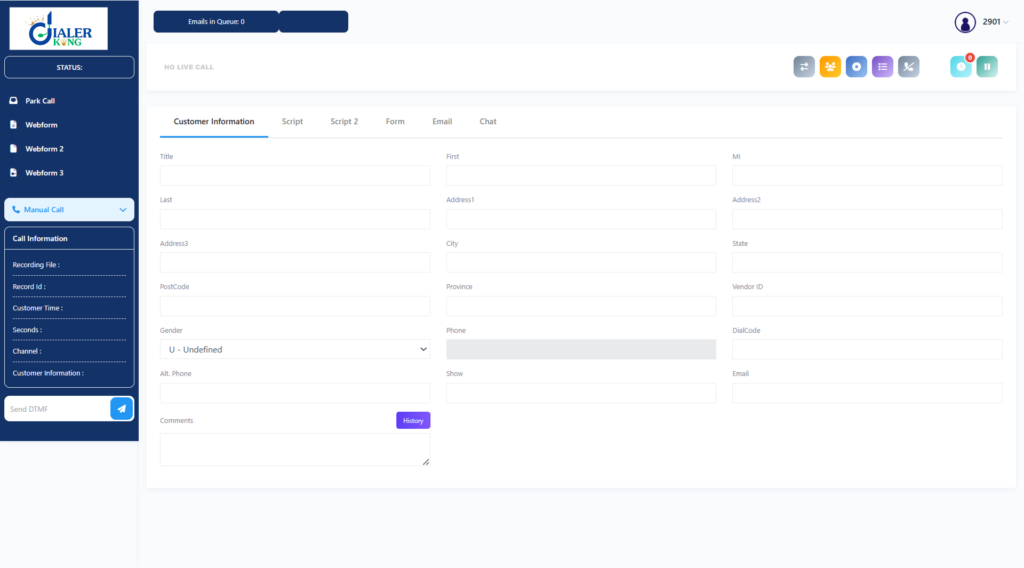
Adjust the agent screen to highlight the fields, controls, call information, scripts, and workflow elements agents use most often. The layout can be organized to make daily tasks simpler and reduce unnecessary navigation.
Build a Branded Admin Interface
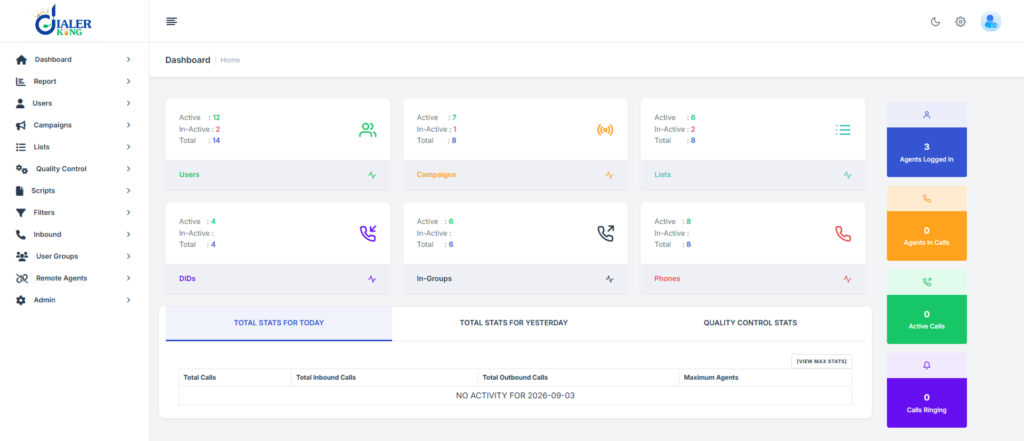
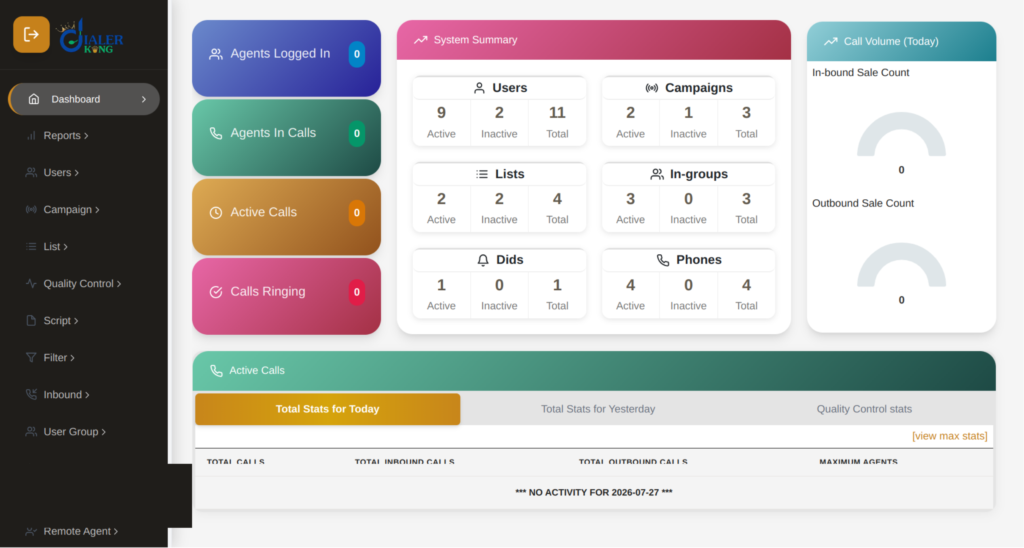
Customize the admin dashboard with your company branding, preferred colors, navigation structure, labels, and frequently used management options. This gives managers a more familiar workspace for handling campaigns, users, reports, and system settings.
Customize Agent Login & Admin Login Screens
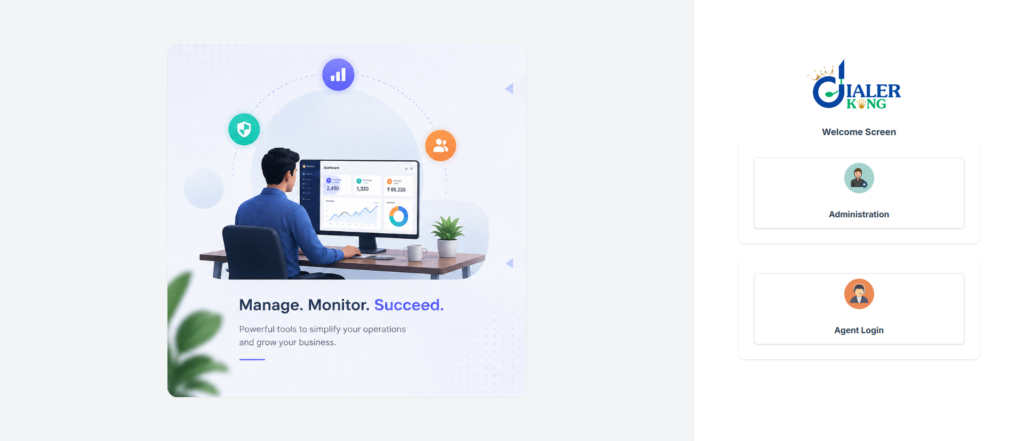
Create separate branded login experiences for agents and administrators with your company logo, page title, colors, and other interface elements. This keeps both entry points consistent with your overall brand identity.
Customize Reports & Management Screens
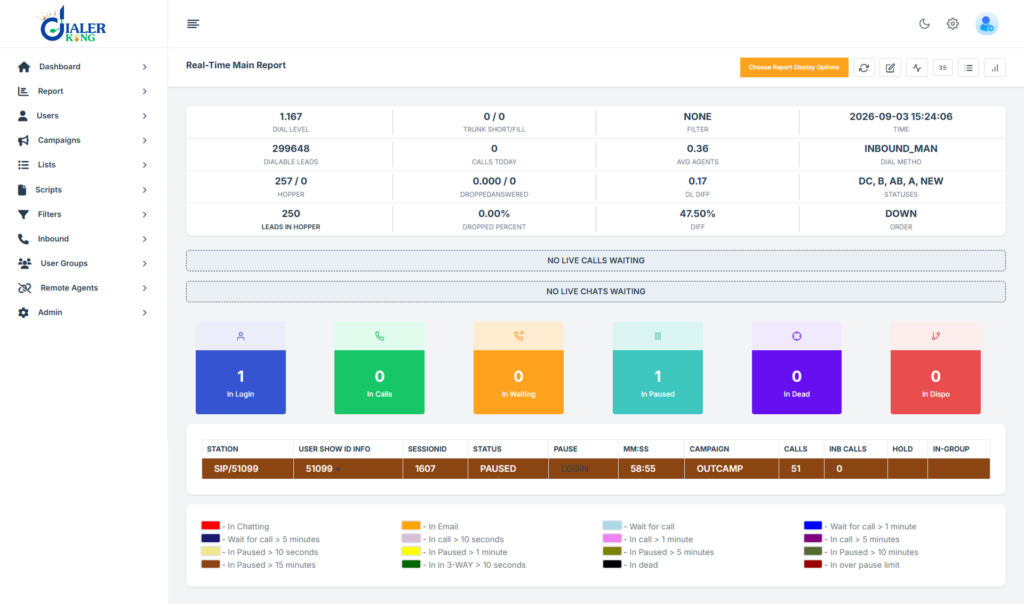
VICIdial reports and management pages can also be adjusted to match your preferred interface style. Highlight the reports and information your managers use regularly while keeping the presentation clean and easy to navigate.
Match VICIdial With Your Existing CRM Workflow
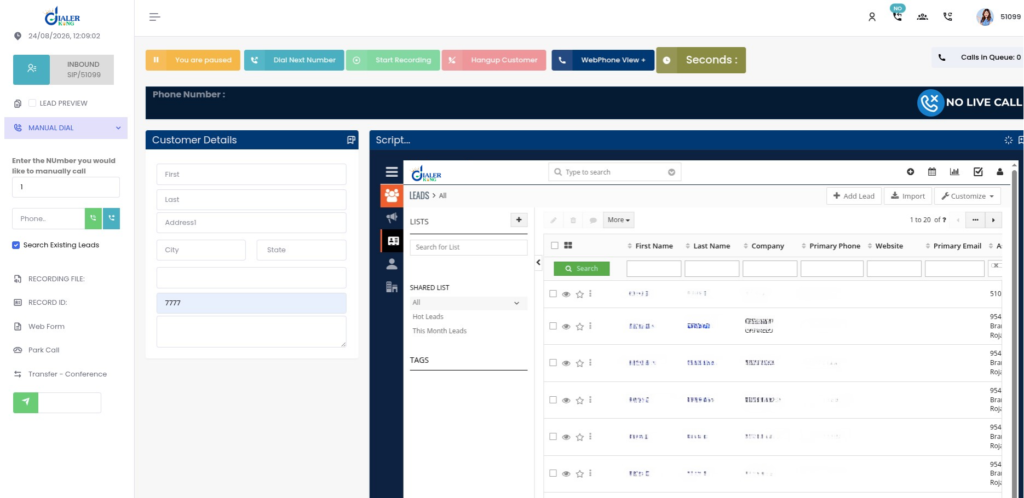
If your team already works with a CRM, the VICIdial agent interface can be customized to support the information and actions agents need during calls. This helps create a smoother workflow between calling activities and customer management.
Common VICIdial Branding Mistakes
The most common VICIdial branding mistake is editing the live files with no backup. The second is forgetting that updates overwrite them. Also watch for these:
- Logos with the wrong size. They stretch or push the menu out of place.
- Low contrast. Light grey text on a light background tires agents’ eyes.
- Browser cache. You see the old screen after a change. Use Ctrl+F5.
- Editing core logic. Stay in the display layer. Do not touch dialing or database code.
- Skipping a test login. Always log in as an agent and as an admin after each change.
FAQs
2. Will an update remove my VICIdial branding❓
It can. Updates or installation processes can overwrite modified web files. Save a patch and a copy of your assets, then reapply them after each update as shown in Step 6.
3. Why don’t I see my changes after editing❓
Your browser is probably showing a cached copy. Press Ctrl+F5, or test in a private window.
4. What size should my logo be❓
Match the original. Run a file on the current image to read its dimensions, and keep the same size or ratio.
5. Is it safe to edit vicidial.php❓
Yes, if you keep a .orig copy, test on a non-live server first, and run php -l after each edit. Only change display code, never dialing or database logic.
Conclusion
VICIdial branding is simple if you do it in order: back up, replace the logo, add a CSS file, update the titles, check every screen, and save a patch. The result is a dialer that looks like part of your business, for agents and for the people who read your reports.
If you want help with VICIdial branding, a full custom theme, or a white-label setup, the DialerKing team can take it on for you.